Variables let you personalize your surveys and invitation messages by automatically including information specific to each respondent, such as their first name, a metafield from the sending, or an answer given earlier in the survey. You can also show different text based on a condition.
Where to use variables
You can insert variables in:
- question and instruction titles and descriptions;
- section titles and descriptions;
- answer choices, secondary choices, matrix rows and columns, scale labels and the unit of text questions;
- the comment field label;
- the email invitation message (subject, content and button text) and the SMS message.
Syntax
A variable is written between double curly braces: {{ type.name }}. The variable is replaced with the matching text when the invitation is sent or when the survey is shown to the respondent.
Example:
- Two variables are set in an invitation message:
Hello {{ patient.first_name }}, here is your follow-up for the {{ metafields.clinic }} clinic.
- The respondent receives the following message: Hello Jeanne, here is your follow-up for the Lime Santé clinic.
Available variables
| Variable | Displayed value |
|---|---|
{{ metafields.key }} | The value of the metafield attached to the sending. Replace key with the metafield key. Metafields are configured by Lime for your workspace: contact our customer support team to get the list. |
{{ patient.external_patient_id }} | The patient’s unique identifier (when patient tracking is enabled). |
{{ patient.field_identifier }} | A patient record field, for example {{ patient.first_name }}. Replace field_identifier with the field’s identifier. For an address field, add _address1, _address2, _city, _province or _postal_code to the identifier. |
{{ attributes.name }} | A custom patient attribute, referred to by its name in the survey’s primary language. If the name contains spaces or accents, write it between brackets and single quotes: {{ attributes['Primary physician'] }}. |
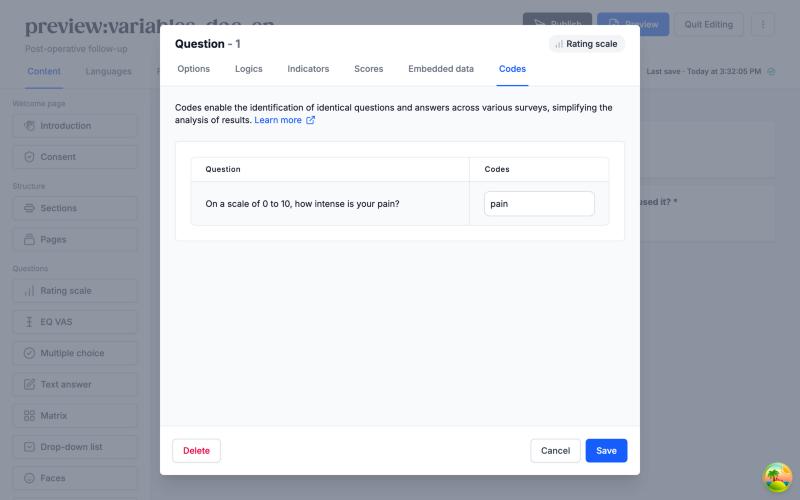
{{ answers.code }} | The answer given to a previous question. Replace code with the question code, set in the question’s Codes tab. |
Insert a variable in a question
- Access the list of Surveys via the main navigation.
- Go to the survey detail page, then click Edit.
- Open the question to edit.
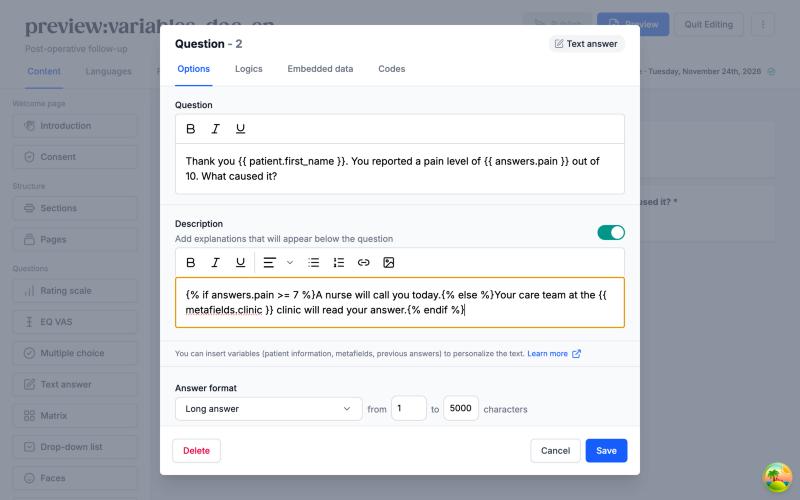
- In the Question or Description field, type the variable between double curly braces, for example
{{ answers.pain }}.
- Click Save, then publish the survey.
To reuse an answer, the original question must have a code and come before the question that displays it. The code is set in the question’s Codes tab:
Show text based on a condition (if / else)
You can show different text depending on an answer or a metafield. A condition starts with {% if ... %}, can offer an alternative with {% else %}, and always ends with {% endif %}.
Based on a scale answer
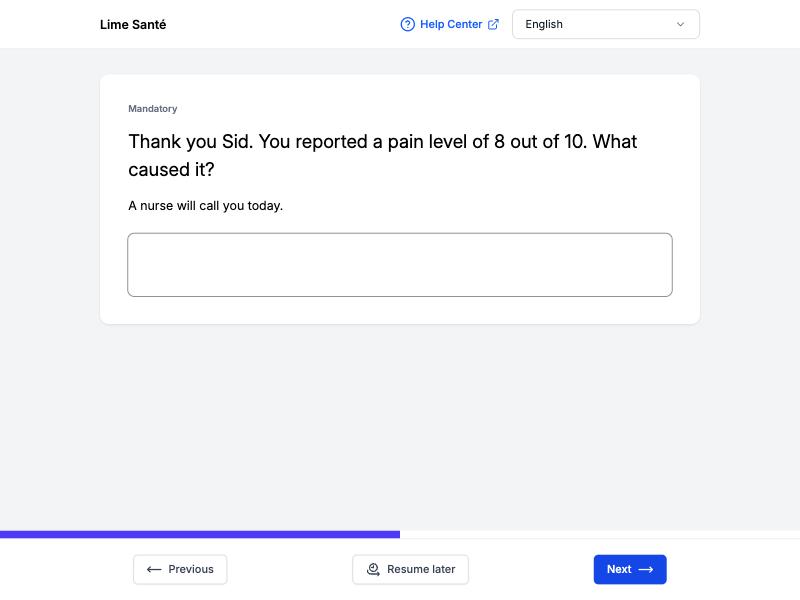
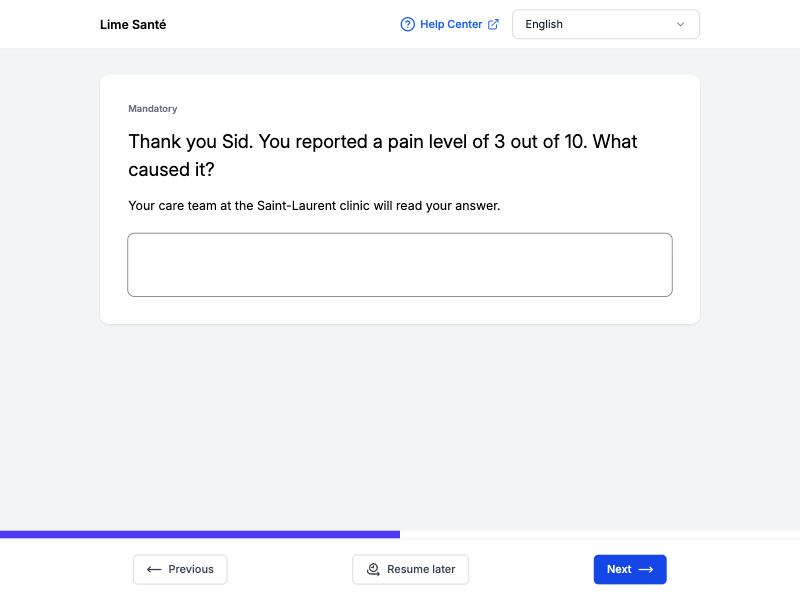
{% if answers.pain >= 7 %}A nurse will call you today.{% else %}Your care team at the {{ metafields.clinic }} clinic will read your answer.{% endif %}
A respondent who chose 8 sees the first text:
A respondent who chose 3 sees the text after else:
Based on text (metafield or answer choice)
{% if metafields.clinic == 'Laval' %}Go to the 2nd floor.{% elsif metafields.clinic == 'Saint-Laurent' %}Go to the front desk.{% else %}Go to your clinic.{% endif %}
Available operators: == (equals), != (not equal), >, <, >=, <=, plus and and or to combine conditions.
'Laval', not "Laval". With double quotes, the condition does not work in questions.
Only compare numbers with questions that return a number (scale, number). Comparing a text answer with a number shows an error message to the respondent.Set a fallback value
If a variable has no value for a respondent (missing metafield, unanswered question or unknown code), nothing is shown in its place. Set a fallback value for every variable you use.
Replace a value with the default filter
Add | default: 'text' after the variable name:
| Text to insert | With a value | Without a value |
|---|---|---|
Hello {{ patient.first_name | default: 'there' }}, | Hello Ginny, | Hello there, |
{{ attributes['Physician'] | default: 'Your physician' }} will read your answer. | Dr. Smith will read your answer. | Your physician will read your answer. |
You chose: {{ answers.service | default: 'no service' }}. | You chose: Emergency. | You chose: no service. |
Change the whole sentence with a condition
When a fallback value is not enough, use a condition:
{% if metafields.clinic %}During your visit to the {{ metafields.clinic }} clinic, how would you rate the welcome you received?{% else %}During your visit, how would you rate the welcome you received?{% endif %}
default: 'there', not default: "there". With double quotes, nothing is shown.